Using Arcus
How investigations work
What Arcus reads, how it reaches a root cause, and how to check its work.
7 min read
Start one
- From Home: paste a ticket ID, a log line or the symptom in the top box and press Enter, or click a ticket in My queue.
- From Cases / Tickets, or from New Investigation (⌘N / Ctrl+N).
- Drop in files: logs, HAR files, archives, PDFs and screenshots are read too.
What Arcus looks at
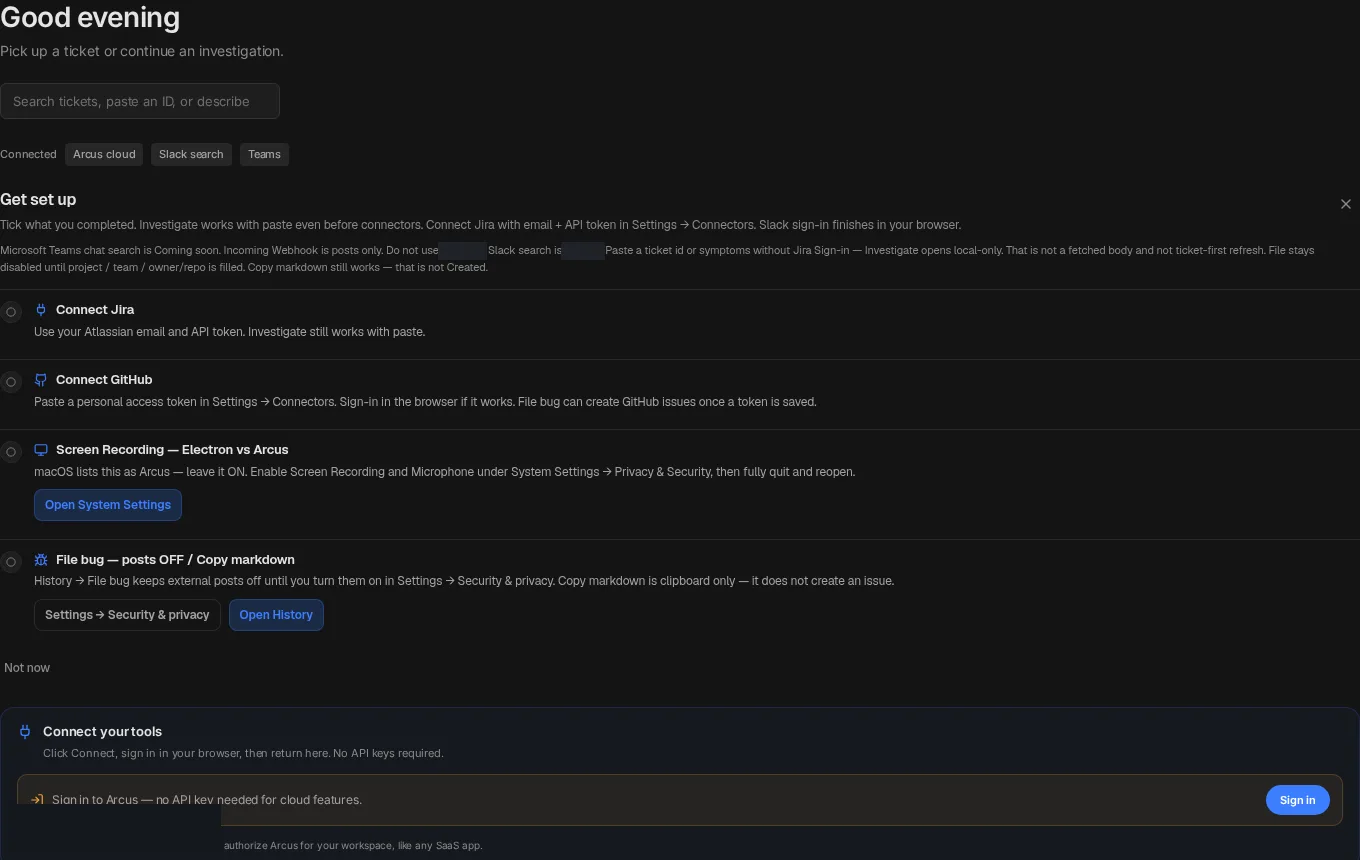
- The ticket: subject, description, comments, attachments and the customer’s account (tier, ARR, renewal, health) when a CRM is connected.
- Your code: local repositories you indexed (the index stays on your computer) and GitHub if connected.
- Logs and metrics from Tools & MCP when configured.
- Your team’s past cases: Case Memory and Déjà Vu bring up confirmed fixes for the same symptom.
- Slack threads you can see, when you ask with @slack. Web search only after you allow it.
Reading the answer
Answers follow the same shape so you can check them fast:
- What I think is happening: one paragraph in plain words.
- Root cause with confidence (High, Medium, Low and a score) and the file and line when code is involved.
- Evidence: the ticket, log lines and code it relied on. Citations Arcus cannot verify are flagged, not hidden.
- Ruled out: what it checked and why it is not that.
- Workaround for the customer today, and the fix for engineering.
Loading and empty states
While Arcus works you see a plan and loading placeholders, not a blank panel. If nothing is connected yet, empty states tell you exactly what to connect next.

Hand it off
- File bug: builds the bug from the investigation. Edit, Preview, then Copy markdown or file it.
- Reply check: draft a customer reply; Arcus blocks leaks before public send.
- Knowledge: turn a resolved case into a help-center draft after you approve.
- Finish & save stores the case in History. Leave keeps it as a draft.
Next
Cases: your assigned tickets
The Cases sidebar lists tickets assigned to you across connected helpdesks, with refresh and ticket cards.
Customer reply and verifier
Draft a reply, run the reply check (verifier), and only then post when external posts are on.
Publish a knowledge article
Turn a resolved case into a help-center draft, review it, and publish only after you approve.